Who this guide is for
Organizers who want a practical step-by-step way to get a group to one decision quickly.
Use this guide when
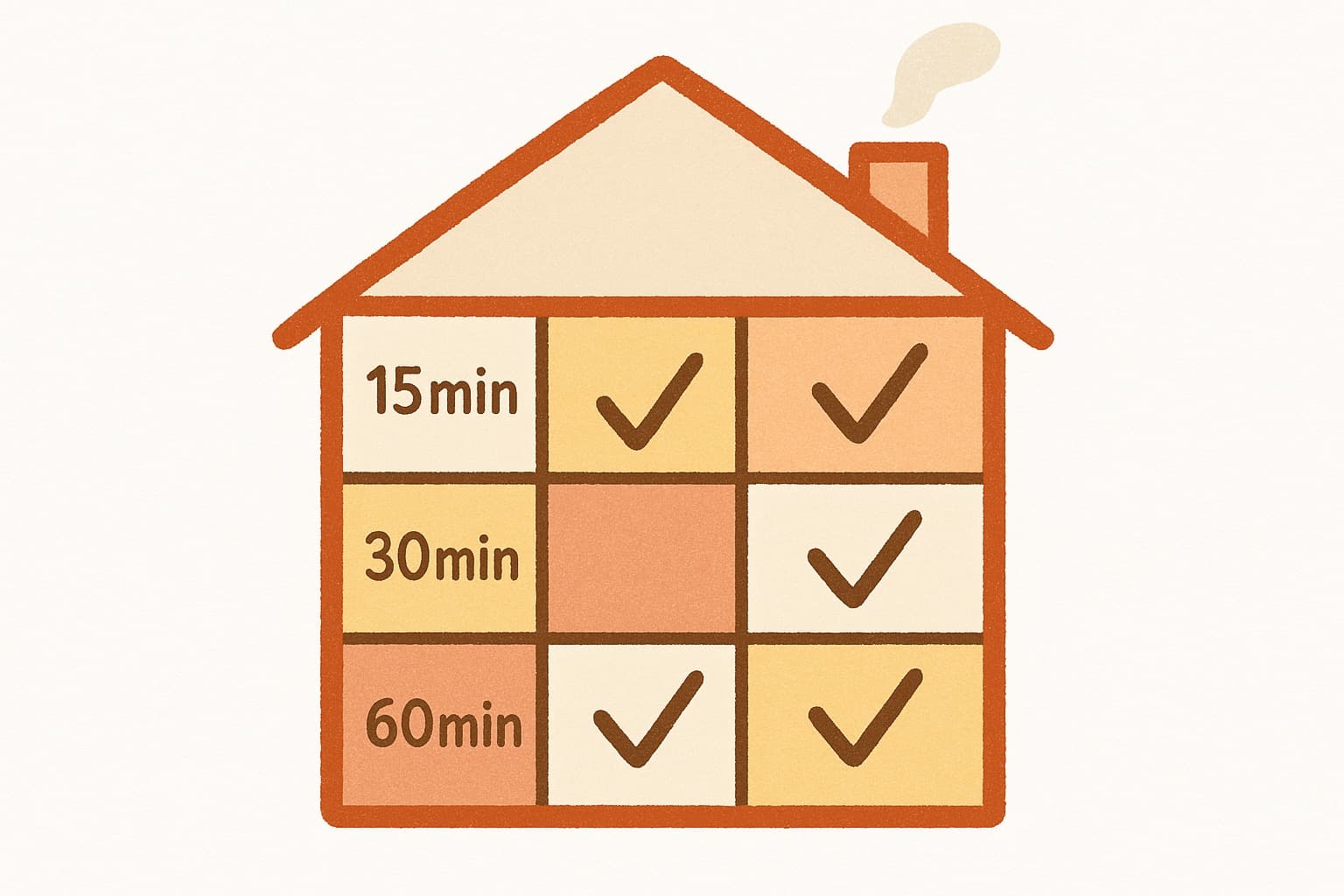
Most scheduling polls force one meeting length. WhenWorks lets you offer multiple duration options in a single poll — 15, 30, or 60 minutes — so everyone picks what works.
Ever tried to schedule a meeting, only to realize you have no idea how long it should take? Maybe your standup could be 15 minutes, but sometimes you need 30. Or perhaps you're coordinating a client call where 45 minutes might work, but an hour would be safer.
Here's the problem: most scheduling polls force you to pick one duration. You create a 30-minute slot, but half your team needed 15 minutes. Or you book an hour and waste 25 minutes of everyone's time.
There's a better way.
WhenWorks lets you create a scheduling poll with multiple duration options in a single vote. Participants see all the time slots you've offered — with different lengths — and pick what works for them. No back-and-forth. No second poll needed. Just one link, one poll, everyone covered.
Why Multiple Durations Matter
Most scheduling tools treat meeting length as an afterthought. You pick a time, you pick a duration, and that's it. But real life doesn't work that way.
Consider these scenarios:
- •Quick sync vs. deep dive — Your weekly check-in might be 15 minutes, but when there's a crisis, you need an hour. One poll should handle both.
- •Participant preferences — Senior team members might prefer shorter, focused meetings. Newer hires might need more time for questions. Why force everyone into the same box?
- •Buffer room — Sometimes you don't know how long something will take. Offering 30, 45, and 60-minute options gives respondents the flexibility to choose.
This is especially useful for:
- •Client calls where scope varies
- •Interview loops with multiple rounds
- •Team retrospectives that ebb and flow
- •One-on-ones that range from quick check-ins to career conversations
How WhenWorks Does It
When you create a poll in WhenWorks, you can add multiple time slot options — each with its own duration. Participants see all available times and lengths, then vote for the option that fits their schedule.
Here's the workflow:
- •Create your poll — Go to whenworks.cc and start a new scheduling poll
- •Add time slots — Enter your proposed times, each with a different duration (15 min, 30 min, 60 min)
- •Share the link — Send it to your team or clients via Slack, email, or text
- •Collect votes — People pick the time+duration that works for them
- •Book it — The winning slot gets automatically added to everyone's calendar
No account required. No login needed for voters. Just a link.
The Real-World Impact
Teams using multi-duration polls report:
- •Fewer scheduling emails — One poll replaces multiple "what about this time?" threads
- •Better meeting outcomes — People actually have the time they need, not a rushed 15 minutes when they needed 30
- •Higher attendance — When people vote on what works, they're more likely to show up
And unlike Doodle, WhenWorks doesn't nickel-and-dime you for basic features. The free tier includes 10 polls per month with multiple duration options.
When to Use This Feature
Not every meeting needs multiple duration options. But when you're uncertain — or when your group has varying needs — it's a superpower.
Use it for:
- •Varied meeting types — Mix quick updates with strategic discussions
- •Flexible planning — Let the group decide how much time they need
- •Client flexibility — Offer options without going back and forth
Ready to try it?
Create your first multi-duration scheduling poll at whenworks.cc — no signup required for voters and free to start.
Before you act on this advice
- Define the decision deadline before you send the poll.
- Offer enough options to find overlap without overwhelming respondents.
- Plan the follow-up step: reminder, final decision, and calendar invite.
Common traps to avoid
- Skipping the response deadline often turns a clear guide into a drifting process.
- Too much flexibility can create more confusion rather than more attendance.
- Always plan how you will finalize the decision before you ask for input.
Best next step
Apply the guide to one real scheduling decision this week so you can refine the process from experience instead of theory.
Why you can trust this page
Guide articles are written to help someone move from “we need a time” to a concrete decision, using the same poll, reminder, and follow-up patterns that the WhenWorks product is built around.
Public guides on WhenWorks are tied to the product and support context behind the site. We explain our editorial process publicly so readers can judge whether the page feels complete and trustworthy for their use case.
Want the policy context behind this article? Review our editorial standards or contact the team.
Questions people usually ask
How do I know if my process is working?
You should see faster responses, less back-and-forth, and clearer final decisions. If the process still depends on repeated manual reminders, it likely needs refinement.
What is the most common guide-related mistake?
People follow the setup steps but forget to plan the close: who decides, when the response window ends, and how the final answer gets communicated.
